Shared scripts & imports
Create and import a shared library
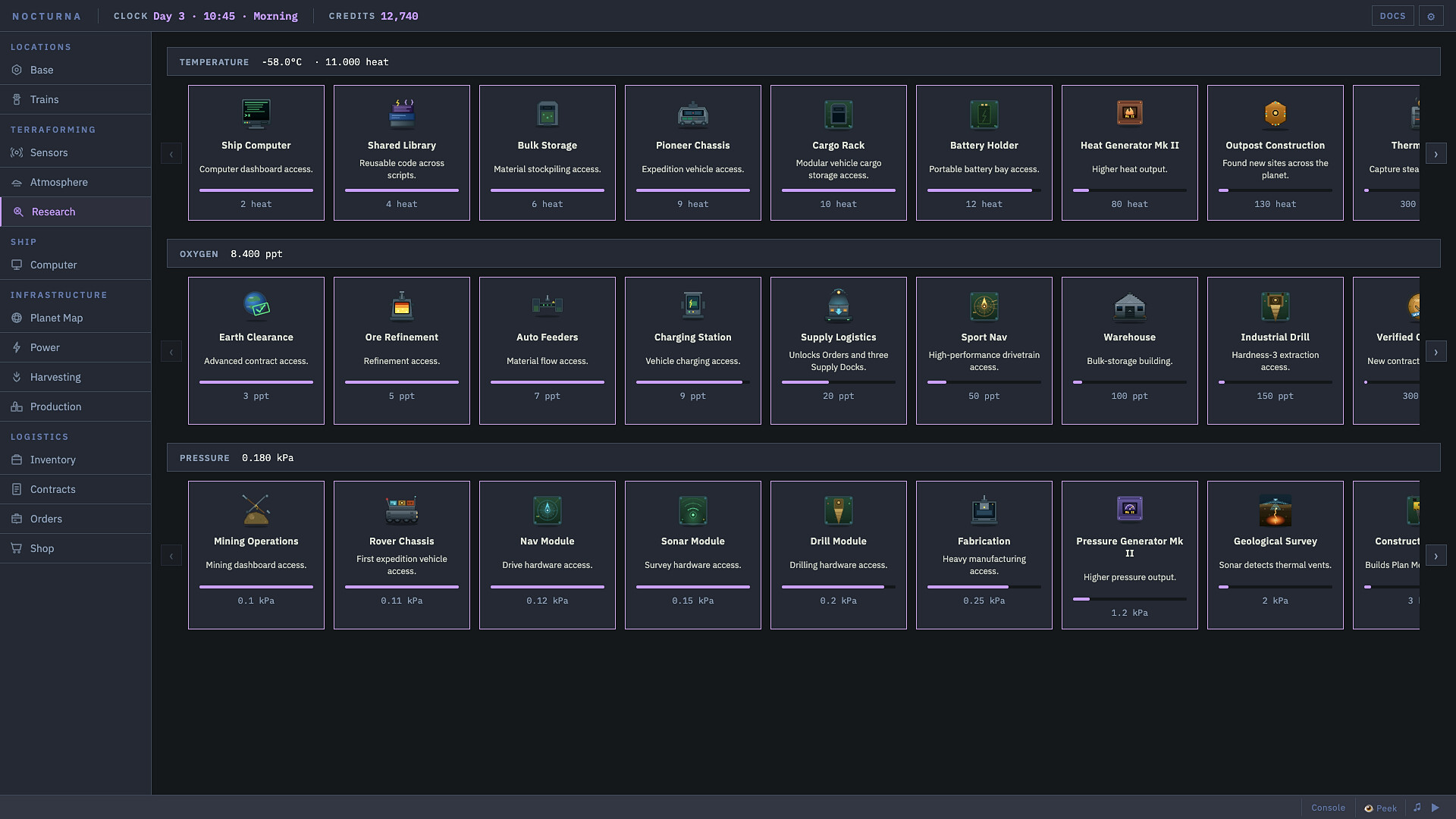
Research Ship Computer and Shared Library, then open Ship → Computer → Library and choose + New. Put your reusable function in a Library script and import it by its module name from the script that needs it.
Library helpers do not inherit the caller’s machine or panel. Pass that object explicitly; test the two-script example below before adding movement or inventory calls.
On this page
1. Create the Library script
- Check Research for Ship Computer and Shared Library. A normal machine script and an unlocked shared library are not the same thing.
- In the left sidebar, open Ship → Computer → Library, then + New.
- Name the module
reservesfor this example. Keep the import name simple: letters and underscores, without spaces. - Put the helper below in that Library script and save it in the editor. Do not place it only in the caller’s machine script.
The menu route comes from the public build 441ad76 reference. If your build has moved the menu, find its shared Library section under the Computer; do not confuse it with a device’s saved script variants.
2. Add a helper with no machine side effects
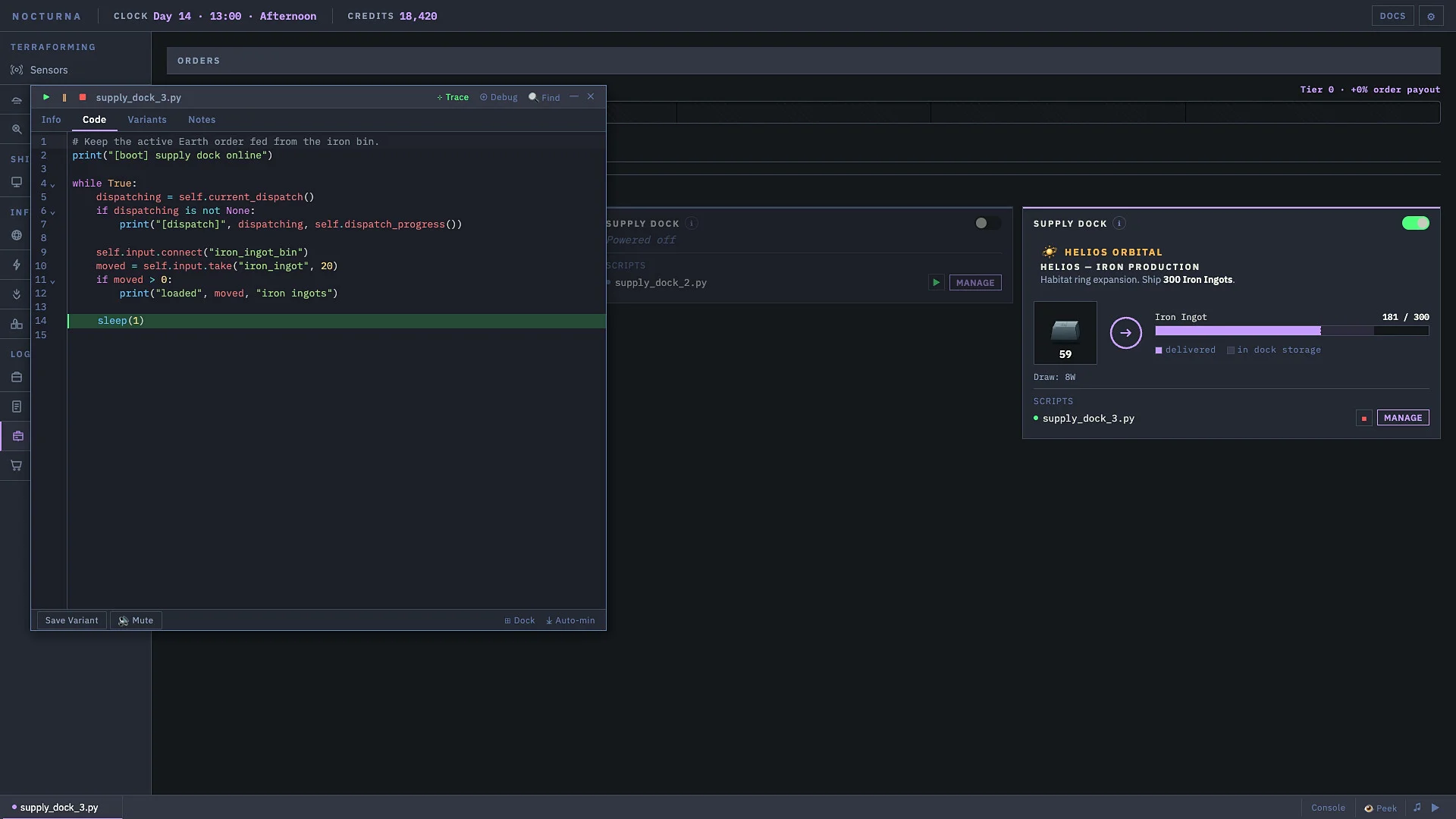
In-game Library script: reserves. This original teaching example compares numbers only. It does not read a real battery, turn anything off, sell an item, or drive a vehicle.
def has_reserve(available, minimum):
    return available >= minimum
available and minimum are inputs, not global machine readings. That makes it easy to check the import separately from any component API.
3. Import and call it from a different script
In-game caller script: run this in a separate script, not inside reserves. Use only these lines for the first test so it cannot trigger an existing automation loop.
from reserves import has_reserve

print(has_reserve(40, 25))
print(has_reserve(10, 25))
The expected results are True, then False. These are the pass/fail values for the comparison—not a claim about your base’s power.
You can instead import the module and call the helper through its name:
import reserves

print(reserves.has_reserve(40, 25))
Use one form at a time. Importing a function makes has_reserve(...) available directly; importing the module uses reserves.has_reserve(...). The import line uses the module name, not a Windows path or a quoted filename.
Why self or panel is missing inside the library
In a machine’s script, self refers to that machine. A Library has its own scope: importing it does not copy the caller’s local self or panel into its functions.
Make the helper accept the context it needs, then supply it from the caller. For example, a helper with a machine parameter would be called with helper(self) from the machine script; a drawing helper with a target_panel parameter would receive panel from the control-room script.
In the September 22 panel discussion, a player reported working code that receives the panel object and stores it for later drawing. The vehicle discussion uses the same idea for a machine object. Passing an object is not the same as granting new permissions: check any method marked SELF ONLY in your installed docs before using it through a shared helper.
If you write a class, its method’s self is the new class instance, not magically the vehicle. Keep the passed machine in a separately named field rather than assuming the two objects have merged.
If the first import does not work
| What you see | First check |
|---|---|
| No Library menu | Check Ship Computer and Shared Library research, then the Computer section. |
| Module not found | The saved Library module and import must use the same name. A helper defined only in a machine file is not this Library module. |
| Helper name missing | Check the function’s spelling and whether you imported the function or the module. |
| self or panel not defined | Pass the caller’s object into a helper parameter; do not read that caller-local name directly in the Library. |
| Copied Python package import fails | Use a game-supported built-in module or a Library you actually created. This workflow is not a general Python package installer. |
After editing the helper, save it and rerun the small caller test before resuming the real automation. This guide covers creating and importing reusable code—not remotely applying a whole script to every device or preserving state across reloads.
See how scripts fit into the game
Watch the game
An Early Access scripting walkthrough
Watch PowerFang’s broader introduction to the game and its automation. For the two-script Library setup and import check, follow the written steps above; this is not an exact Library-menu tutorial.
Return to the Library setup →Sources for this guide
- Imports & Libraries reference, read September 28, for research, the Library menu, import forms, and shared scope. Its player-maintained repository identifies build
441ad76and says it was rebuilt from exported game documentation; it is not an official current-build guarantee. - Reusable functions for control-room panels, September 22. A responder explicitly reports the panel-object example working; the questioner thanks them, without documenting a separate test result.
- Library classes and vehicle context, September 20, for passing the machine to shared helpers and distinguishing the wrapper’s scope.
- Player-tested language comparison, BuildID 25282646, for the function syntax used in the arithmetic test. We have not claimed an in-game test on your current build.